Monday, 26 September 2011

Gold forecast to beat $2,000 in the next year 2012-2015


Gold forecast to beat $2,000 in the next year

The gold market is revving up to reach new record highs in excess of $2,000 an ounce in the next year, according to the average forecast of bankers, traders and investors at the gold industry’s largest annual gathering.

The bullish prediction, if correct, suggests that the gold bull market remains intact, despite the price of the metal having already gained almost 30 per cent this year and 600 per cent over the past decade.

Central banks return as gold buyers

The widespread optimism at the London Bullion Market Association conference in Montreal, the largest gathering of the gold industry, comes as the gold market has been transformed from a backwater dominated by jewellery demand to one of the hottest investment assets.

The conference, which enjoyed a record attendence in excess of 500, predicted that gold would be trading at $2,019 a troy ounce at the time of next year’s meeting in November 2012. That would mark a fresh nominal record for gold, although it is still below the inflation-adjusted peak touched in 1980, which translates to more than $2,400 in today’s money.

The delegates at the LBMA conference have a strong record of predicting the trajectory of the gold price, although their forecasts have traditionally been overcautious. Last year, with gold trading at $1,298 an ounce, the conference predicted a price of $1,450. On Tuesday, bullion was trading at $1,805.70, down from a record peak of $1,920 in early September.

The forecasts, if accurate, bode well for hedge fund managers such as John Paulson of Paulson & Co and David Einhorn of Greenlight Capital, who bought gold in the financial crisis as a means of betting that governments and central banks would fail to safeguard their economies from the market turmoil.

Many hedge fund investors believe a sharp appreciation in the gold price is likely as they expect the eurozone debt crisis to deepen.

Despite the optimistic price predictions, traders were wary of growing volatility in the gold market, which has experienced some of the sharpest swings on record in recent weeks. Asked whether the market was in a bubble, 39 per cent of the traditionally bullish audience replied that it was. A growing number expect the market to accelerate in the next year or two and peak above $2,500.

“We expect to see $2,500 some time in the next 12 months,” said Som Seif, chief executive of Claymore Investments, a Canadian asset manager.

The most bullish forecast came from Pierre Lassonde, chairman of Franco-Nevada, who predicted that gold would reach parity with the Dow Jones Industrial Average index, at present trading at 11,400, within the next four to six years. “This bull market is far from over,” said Mr Lassonde, whose predictions are optimistic even by the standards of market bulls.

A drop below $1,600 an ounce could mark the end of the rally for the next few months, traders believe – although many expect demand from Asian investors and central banks to prop up prices above that level.

Mr Lassonde said: “I think there’s going to be a strong correction at some point and it’s going to set up the last phase that will take the market to numbers that few people can imagine.”

The bullish sentiment has been underpinned by the strength of demand for coins and small bars from retail investors from Germany to China.

Steven Nathan, marketing director at the Rand Refinery in South Africa, said that sales of the popular gold krugerrand coin were at a record level: “Demand is insatiable. It’s the strongest period ever right now.”

A comparable surge in demand was reported by other mints, refiners and coin dealers. “I just can’t see the price coming down,” said one senior precious metals banker. “Physical demand is incredibly strong.”

It may be tempting to push the analysis even further and question if gold is a safe haven from market volatility and fears, or it’s just a popular buy among Chinese and Indians worried about inflation. 

The reasoning for this is that gold’s rally this year has been driven primarily by retail investors in China and India, as well as central bank buying. 

And it may well be Chinese and Indian consumers are enough to rescue gold from falling off the same cliff that oil did after the 2008 crude bubble popped in spectacular fashion in the last global financial crisis. 

Of course, there has been more to gold’s rally in 2011 than Asian buyers with some additional demand from so-called sophisticated investors in the form of paper gold futures and exchange-traded funds, but this pales when compared to the buying in the form of jewellery and bars and coins.
Gold surged 35 percent from the start of the year to the Sept 6 peak, before slumping as the dollar gained when investors sought the ultimate safety of US Treasuries amid fears of a new global recession. 

Gold has dropped some 14 percent so far this September, its worst monthly performance in almost three years. Of course, part of this is just the recent strength of the US dollar. In euro terms, gold is down about 1.6 percent since its recent peak on Sept.9 and in Australian dollar terms it’s down 6 percent since the recent peak on Aug 22. 

Bullish gold bets on COMEX were cut by almost 14 percent to 160,322 contracts last week as hedge funds and other speculators rushed for the exits, their haste being aided by an increase in the margin requirements to hold gold lots. 
The ETFs fared better, with the largest, the SPDR Gold Trust, remaining relatively stable with 1,252 tonnes of the yellow metal at the end of last week. 

This is down from the Aug. 8 peak of 1,309 tonnes and from the 1,280 that the fund started the year holding. 
The COMEX Gold Trust, which has been taking market share from the SPDR, ended last week with about 168 tonnes of gold, up from 117 tonnes at the start of the year. 

Wednesday, 21 September 2011

WHAT IS Wireless Fidelity Wi-Fi


Wireless Fidelity Wi-Fi


A typical Wi-Fi setup contains one or more Access Points (APs) and one or more clients. An AP broadcasts its SSID (Service Set Identifier, "Network name") via packets that are called beacons, which are usually broadcast every 100 ms. The beacons are transmitted at 1 Mbit/s, and are of relatively short duration and therefore do not have a significant effect on performance. Since 1 Mbit/s is the lowest rate of Wi-Fi it assures that the client who receives the beacon can communicate at least 1 Mbit/s. Based on the settings (e.g. the SSID), the client may decide whether to connect to an AP. If two APs of the same SSID are in range of the client, the client firmware might use signal strength to decide which of the two APs to make a connection to.

The Wi-Fi standard leaves connection criteria and roaming totally open to the client. This is a strength of Wi-Fi, but also means that one wireless adapter may perform substantially better than the other. Since Wi-Fi transmits in the air, it has the same properties as a non-switched ethernet network.
 

Wi-Fi Devices

Wireless Access Point (WAP)

A wireless access point (AP) connects a group of wireless stations to an adjacent wired local area network (LAN). An access point is similar to an ethernet hub or switch, but instead of relaying LAN data only to other LAN stations, an access point can relay wireless data to all other compatible wireless devices as well as to a single (usually) connected LAN device, in most cases an ethernet hub or switch, allowing wireless devices to communicate with any other device on the LAN.
 

Wireless Routers

A wireless router integrates a wireless access point with an IP router and an ethernet switch . The integrated switch connects the integrated access point and the integrated ethernet router internally, and allows for external wired ethernet LAN devices to be connected as well as a (usually) single WAN device such as cable modem or DSL modem . A wireless router advantageously allows all three devices (mainly the access point and router) to be configured through one central configuration utility, usually through an integrated web server .

Wireless Ethernet Bridge

A wireless Ethernet bridge connects a wired network to a wireless network. This is different from an access point in the sense that an access point connects wireless devices to a wired network at the data-link layer . Two wireless bridges may be used to connect two wired networks over a wireless link, useful in situations where a wired connection may be unavailable, such as between two separate homes.
 

Advantages of Wi-Fi

  • Allows LANs to be deployed without cabling, typically reducing the costs of network deployment and expansion. Spaces where cables cannot be run, such as outdoor areas and historical buildings, can host wireless LANs.
  • Wi-Fi silicon pricing continues to come down, making Wi-Fi a very economical networking option and driving inclusion of Wi-Fi in an ever-widening array of devices.
  • Wi-Fi products are widely available in the market. Different brands of access points and client network interfaces are interoperable at a basic level of service. Products designated as Wi-Fi CERTIFIED by the Wi-Fi Alliance are interoperable and include WPA2 security.
  • Wi-Fi networks support roaming, in which a mobile client station such as a laptop computer can move from one access point to another as the user moves around a building or area.
  • Wi-Fi networks support roaming, in which a mobile client station such as a laptop computer can move from one access point to another as the user moves around a building or area.
  • Wi-Fi is a global set of standards. Unlike cellular carriers, the same Wi-Fi client works in different countries around the world.
 

Disadvantages of Wi-Fi

  • Wi-Fi can be interrupted by other devices, notably 2.4 GHz cordless phones and microwave ovens.
  • Power consumption is fairly high compared to some other standards, making battery life and heat a concern.
  • The most common wireless encryption standard, Wired Equivalent Privacy or WEP, has been shown to be breakable even when correctly configured.
  • Wi-Fi Access Points typically default to an open ( encryption -free) mode. Novice users benefit from a zero configuration device that works out of the box but might not intend to provide open wireless access to their LAN.
  • Wi-Fi networks have limited range. A typical Wi-Fi home router using 802.11b or 802.11g with a stock antenna might have a range of 45 m (150 ft) indoors and 90 m (300 ft) outdoors. Range also varies with frequency band, as Wi-Fi is no exception to the physics of radio wave propagation. Wi-Fi in the 2.4 GHz frequency block has better range than Wi-Fi in the 5 GHz frequency block, and less range than the oldest Wi-Fi (and pre-Wi-Fi) 900 MHz block. Outdoor range with improved antennas can be several kilometres or more with line-of-sight.
  • Wi-Fi networks can be monitored and used to read and copy data (including personal information) transmitted over the network when no encryption such as VPN is used. 

HOW TO BLOCKED PORN SITES WITHOUT ANY SOFTWARE

How to block websites

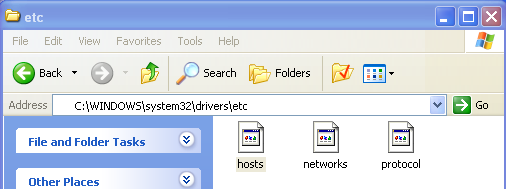
Well many of you wants you wants to block any webiste from your computer either for children saftey or for blocking any software from getting black-listed, then here are simple and few steps to do it:Before continuing let me tell how it works, well Microsoft Windows uses HOSTS file located in [%systemdrive%/windows/system32/drivers/etc] to maintain a personal list of web addresses. Any time a request is made for a URL, the HOSTS file will be checked first. If a corresponding address is found you will be directed to that IP without first consulting a DNS Server. The original intent of this file was to define where sites exist; we will use it in this context to define where they don’t exist.

STEPS:

Open “Run” from the start menu (or press WinKey + r). Just copy paste the following path and hit ENTER.


Alternately, go to C:\Windows\System32\Drivers\Etc and find the file “hosts”. Open that file in Notepad.

Type [C:WINDOWSsystem32driversetc] in your adress bar and press enter key, you will be directed to home directory of HOSTS file

Right Click and open the “hosts file” with notepad. By default your host file will look like the screen-shot below.


Now in the screenshot below, 192.168.15.1 is the default address of my router, when the user/application will try to access the blocked site, it will be redirected to this IP rather than going to the original website. Note that IP [192.168.15.1] is followed by the name of the website you want to block. Here i blocked the official website of Internet Download Manager, so that IDM may not able to blacklist my key. [Obviously its valid if you are using a pirated fake key].


Well here you go, you can add as many websited you want to block in the list like above.


Save the file and exit.


So, here you go. Restart your browser if it is opened and changes will take place immediately.
The good thing is that no message, no pop ups nothing will be displayed when someone tries to open a blocked website. Your browser will just fail to open those websites without any error messages.

General keyboard shortcuts

CTRL+C                     (Copy)
CTRL+X                     (Cut)
CTRL+V                     (Paste)
CTRL+Z                     (Undo)
DELETE                     (Delete)
SHIFT+DELETE       (Delete the selected item permanently without placing the item in                                       the Recycle Bin)
CTRL                          while dragging an item (Copy the selected item)
CTRL+SHIFT             while dragging an item (Create a shortcut to the selected item)
F2 key                         (Rename the selected item)
CTRL+RIGHT ARROW (Move the insertion point to the beginning of the next word)
CTRL+LEFT ARROW (Move the insertion point to the beginning of the previous word)
CTRL+DOWN ARROW (Move the insertion point to the beginning of the next paragraph)
CTRL+UP ARROW (Move the insertion point to the beginning of the previous paragraph)
CTRL+SHIFT with any of the arrow keys (Highlight a block of text)
SHIFT with any of the arrow keys (Select more than one item in a window or on the desktop, or select text in a document)
CTRL+A (Select all)
F3 key (Search for a file or a folder)
ALT+ENTER (View the properties for the selected item)
ALT+F4 (Close the active item, or quit the active program)
ALT+ENTER (Display the properties of the selected object)
ALT+SPACEBAR (Open the shortcut menu for the active window)
CTRL+F4 (Close the active document)
ALT+TAB (Switch between the open items)
ALT+ESC (Cycle through items in the order that they had been opened)
F6 key (Cycle through the screen elements in a window or on the desktop)
F4 key (Display the Address bar list in My Computer or Windows Explorer)
SHIFT+F10 (Display the shortcut menu for the selected item)
ALT+SPACEBAR (Display the System menu for the active window)
CTRL+ESC (Display the Start menu)
ALT+Underlined letter in a menu name (Display the corresponding menu)
Underlined letter in a command name on an open menu (Perform the corresponding command)
F10 key (Activate the menu bar in the active program)
RIGHT ARROW (Open the next menu to the right, or open a submenu)
LEFT ARROW (Open the next menu to the left, or close a submenu)
F5 key (Update the active window)
BACKSPACE (View the folder one level up in My Computer or Windows Explorer)
ESC (Cancel the current task)
SHIFT when you insert a CD-ROM into the CD-ROM drive (Prevent the CD-ROM from automatically playing)
CTRL+SHIFT+ESC (Open Task Manager)


Dialog box keyboard shortcuts

If you press SHIFT+F8 in extended selection list boxes, you enable extended selection mode. In this mode, you can use an arrow key to move a cursor without changing the selection. You can press CTRL+SPACEBAR or SHIFT+SPACEBAR to adjust the selection. To cancel extended selection mode, press SHIFT+F8 again. Extended selection mode cancels itself when you move the focus to another control.
CTRL+TAB (Move forward through the tabs)
CTRL+SHIFT+TAB (Move backward through the tabs)
TAB (Move forward through the options)
SHIFT+TAB (Move backward through the options)
ALT+Underlined letter (Perform the corresponding command or select the corresponding option)
ENTER (Perform the command for the active option or button)
SPACEBAR (Select or clear the check box if the active option is a check box)
Arrow keys (Select a button if the active option is a group of option buttons)
F1 key (Display Help)
F4 key (Display the items in the active list)
BACKSPACE (Open a folder one level up if a folder is selected in the Save As or Open dialog box)

Microsoft natural keyboard shortcuts

Windows Logo                       (Display or hide the Start menu)
Windows Logo+BREAK       (Display the System Properties dialog box)
Windows Logo+D                  (Display the desktop)
Windows Logo+M                 (Minimize all of the windows)
Windows Logo+SHIFT+M    (Restore the minimized windows)
Windows Logo+E                  (Open My Computer)
Windows Logo+F                   (Search for a file or a folder)
CTRL+Windows Logo+F      (Search for computers)
Windows Logo+F1                 (Display Windows Help)
Windows Logo+ L                 (Lock the keyboard)
Windows Logo+R                  (Open the Run dialog box)
Windows Logo+U                  (Open Utility Manager)


Accessibility keyboard shortcuts

Right SHIFT for eight seconds (Switch FilterKeys either on or off)
Left ALT+left SHIFT+PRINT SCREEN (Switch High Contrast either on or off)
Left ALT+left SHIFT+NUM LOCK (Switch the MouseKeys either on or off)
SHIFT five times (Switch the StickyKeys either on or off)
NUM LOCK for five seconds (Switch the ToggleKeys either on or off)
Windows Logo +U (Open Utility Manager)
Windows Explorer keyboard shortcuts
END (Display the bottom of the active window)
HOME (Display the top of the active window)
NUM LOCK+Asterisk sign (*) (Display all of the subfolders that are under the selected folder)
NUM LOCK+Plus sign (+) (Display the contents of the selected folder)
NUM LOCK+Minus sign (-) (Collapse the selected folder)
LEFT ARROW (Collapse the current selection if it is expanded, or select the parent folder)
RIGHT ARROW (Display the current selection if it is collapsed, or select the first subfolder)


Shortcut keys for Character Map

 After you double-click a character on the grid of characters, you can move through the grid by using the keyboard shortcuts:
RIGHT ARROW (Move to the right or to the beginning of the next line)
LEFT ARROW (Move to the left or to the end of the previous line)
UP ARROW (Move up one row)
DOWN ARROW (Move down one row)
PAGE UP (Move up one screen at a time)
PAGE DOWN (Move down one screen at a time)
HOME (Move to the beginning of the line)
END (Move to the end of the line)
CTRL+HOME (Move to the first character)
CTRL+END (Move to the last character)
SPACEBAR (Switch between Enlarged and Normal mode when a character is selected)

Friday, 16 September 2011

COMPUTER SCIENCE ARTICLES AND SOLUTION

Top 10 Ways to Speed Up Your Computer’s Boot Time

If there's one thing everyone dreads, it's rebooting their computer. It may only take a minute or two, but it can seem like forever. Here are our top 10 tweaks that'll make your computer boot a little faster.
This is a pretty controversial topic, as there are a lot of startup-tweaking myths out there. So, we took to the streets (of the internet) and searched for as many easy, well-supported tips as we could find. There may be others, some of which are controversial, but these 10 things are almost sure to get you a faster-booting machine.

10. Tweak Your BIOS

When you first set up your computer, your BIOS is set up to make things a bit more convenient for you, but once you're all set up, those things can be disabled. If you hold the DEL key when you start up your computer (or whatever key your BIOS tells you to enter setup), you can turn on the "Quick Boot" option and move your hard disk to the top of the boot priority list. The Quick Boot setting will turn off the tests your computer runs when it first turns on, and the boot priority tweak will tell your computer not to look for CDs, thumb drives, or other media when it first starts, which will get you booted into your OS quicker. If you ever need to boot from CD though, you'll have to go back into the BIOS and change this again before you do.

9. Clean Out Programs that Launch at Startup

One of the most tried and true ways to speed up your boot process is to keep unnecessary programs from starting up with your computer. You can do this by running msconfig from the Start Menu's search box, and going to the Startup tab. This applications list will tell you what each of those applications does, so you know which ones you can disable and which ones you don't want to. Previously mentioned Soluto is also a fantastic way to clean up these programs, and these days it's got a bunch of other handy features that make it worth a download.

8. Delay Windows Services That Run at Startup

Many people argue that disabling Services from msconfig will also speed up your boot time, but we've found that this is more problematic than anything. However, you can delay certain startup services so that your computer boots quickly and then worries about them later—after all, you don't need all those services the minute you start up your machine.

7. Change Your Boot Menu's Timeout Values

If you're dual-booting your machine, then your boot menu probably has a "timeout value", meaning the amount of time it waits for you to make a selection before it just boots into the default OS. On Windows, this timeout value is often 30 seconds, which is a long time to wait if you aren't looking directly at your screen. To change this timeout value, head to msconfig and click on the BOOT.INI tab, and change the number in the timeout box to something lower. If you're dual-booting with Linux, you're probably running the GRUB boot menu, and you can change the timeout on that too.

6. Disable Unused Hardware

Your computer loads a lot of drivers when it first starts up, some of which you might not even use. Head into the Device Manager from the Start Menu's search box, and look for anything you aren't using—Bluetooth controllers, modems, and virtual Wi-Fi adapters are common culprits. Right-click on the entry you want to disable and hit "Disable". Remember to only do this with things you don't actually use—if you use Wireless Hosted Networks, you'll need to keep those virtual Wi-Fi adapters enabled. It's also worth mentioning here that keeping all your drivers up to date will help this portion of the startup time, too (which you can do with the help of a program like previously mentioned Device Doctor).

5. Keep Your Antivirus Running and Up to Date

This should go without saying, but we'll say it anyway: install some antivirus software, keep it up to date, and run a regular scan. This is more of a preventative measure than an actual boot-speeding tip, but if you ever do get malware, it's sure to slow your computer's boot time. With a good antivirus around like Microsoft Security Essentials, you'll be more protected against that happening. Don't like MSE? There are some great ones out there too, so there's no reason not to have one around.

4. Remove Unnecessary Fonts

Since the dawn of time, Windows has loaded fonts at startup and slowed down the boot time. This is less of a problem than it used to be, but it can still slow you down a bit. Windows 7 loads over 200 fonts at startup; even more if you've installed Microsoft Office. Chances are, you use very few of those fonts, so you can hide them to speed up that process. In Windows 7, open up the Fonts folder from the Start Menu's search box, and check off all the fonts you don't need. Then click the "Hide" button in the toolbar. This way, if you ever want them, you can bring them back, but Windows won't load them at startup. Note that just removing a few fonts probably isn't going to make a noticeable difference—you'll probably need to get rid of a few hundred. That said, you might have hundreds more fonts installed than you realized, so that isn't as ridiculous as it sounds.

3. Upgrade Your RAM

Installing more RAM has always been an effective way of speeding up your computer, and that hasn't changed. RAM is pretty cheap these days, so if you're running low, there's no reason not to stock up and make your computer run a little smoother. We've gone over how to replace it in both a desktop and a laptop, and even for the inexperienced, it's a pretty simple procedure.

2. Give Your Computer a Static IP

When you first start up your computer, it spends a significant amount of time asking the network for an IP address. You can get rid of this process altogether by giving your computer a static IP address that never changes. Not only does this make your network easier to manage (since each computer will always have the same IP address), but it can shave a bit more time off your startup. Here's how to do it in different versions of Windows.

1. Install a Solid State Drive

These days, your hard drive is probably the biggest bottleneck in your machine. One of the best upgrades you can make to your computer is to install a solid state drive, which has super-fast read times that can speed up your startup considerably. They're certainly not a cheap upgrade, nor are they without their own maintenance requirements, but if you want to speed up your computer and its boot time, you can't go wrong by installing an SSD. The difference will be shocking.